
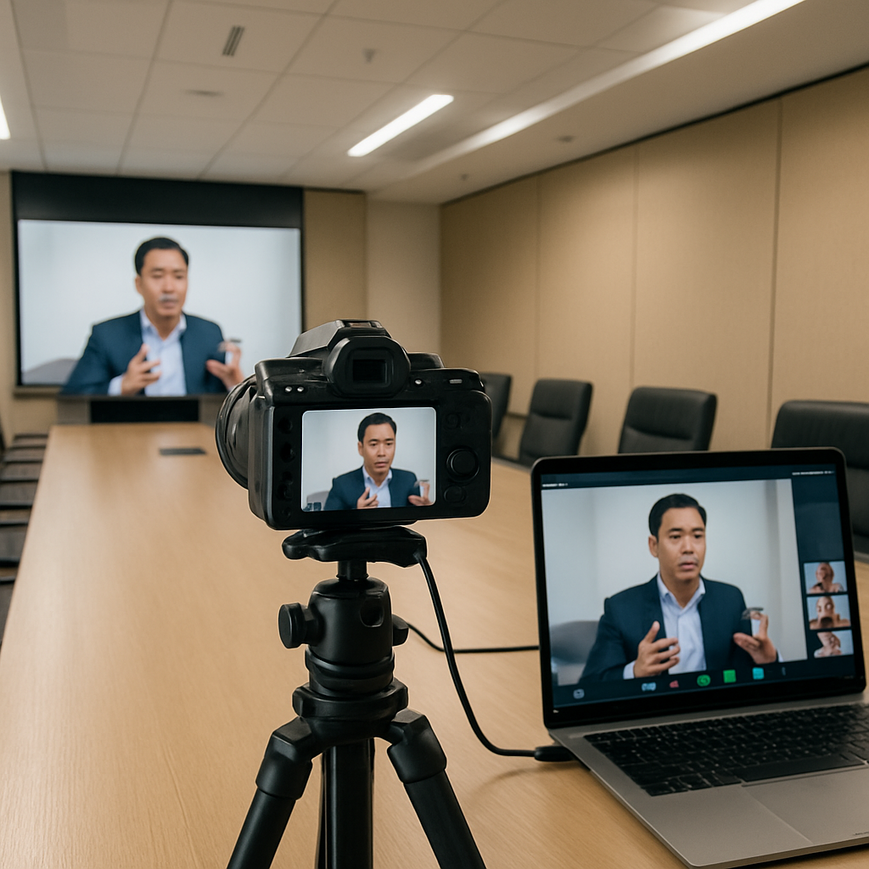
Many Singapore businesses want better event quality without making their workflow complicated. That is a practical goal, especially for town halls, product launches, training sessions, hybrid conferences, investor briefings, and internal communications that now often involve both in-room and remote audiences. Standard business platforms such as Zoom, Microsoft Teams, Google Meet, and Webex are designed to be accessible, but their default camera options are usually basic. A professional camera can significantly improve image quality, framing flexibility, and brand presentation, provided it is connected and configured correctly.
The main challenge is not simply buying a better camera. The key question is how to make a professional camera work smoothly with platforms built for laptops and webcams. That means understanding signal formats, capture devices, frame rates, audio routing, lighting, and platform settings. In Singapore, this matters even more because many organisations operate from compact offices, co-working spaces, hotel ballrooms, and multi-use meeting rooms where equipment must be reliable, portable, and easy to manage. When done properly, a professional camera setup can give you a cleaner, more credible, and more consistent online presence without overwhelming your team.
This article explains the practical steps, technical considerations, and common pitfalls involved in using professional cameras with standard business platforms. It is intended for business users, communications teams, event teams, and office administrators who need accurate guidance rather than marketing claims.
Why professional cameras improve business platform performance
A professional camera usually offers a larger sensor, better optics, stronger low-light handling, and more control over focus and exposure than a built-in laptop camera or a basic USB webcam. In plain terms, that means sharper images, more natural colour, and better performance when the room is not perfectly lit. For business use, this can make presenters look more polished and help remote participants follow facial expressions, slides, and demonstrations more easily.
Standard business platforms do not “need” a professional camera to function, but they can benefit from one if the signal is delivered in a format the platform accepts. The platform itself usually receives a video feed as if it were a webcam. This is why many professional cameras are paired with a capture device or a USB output. The camera does the imaging work, while the business platform simply sees a usable video source.
Where the quality difference comes from
Professional cameras are built for image capture, not just basic video calls. They often have better dynamic range, which helps preserve detail in both bright and dark parts of the frame. This is useful in Singapore offices with strong daylight, glass partitions, or mixed indoor lighting. They also tend to maintain a more stable image under controlled settings, which supports consistent branding during recurring webinars and executive presentations.
However, better image quality does not automatically mean better results. If a camera is misconfigured, poorly lit, or connected through the wrong adapter, the output can still look worse than a simple webcam. That is why setup matters as much as equipment choice.
Choosing the right connection method for Zoom, Teams, Meet, and Webex
The most important technical decision is how the professional camera will connect to the computer running the business platform. The common options are HDMI capture, USB output, or, in some workflows, an IP or network-based video source. The best choice depends on the camera model, the meeting software, and whether you need a simple one-person setup or a full production system.
HDMI with a capture device
Many professional cameras output clean HDMI, which means the image is sent out without menus or overlays. That HDMI signal is then fed into a video capture device, which converts it into a USB video source the computer can recognise. This is a common and reliable method because it works with many cameras and provides good image quality.
For business platforms, the capture device usually appears as a camera option in the settings menu. Once selected, Zoom, Teams, Google Meet, or Webex treats it like any other webcam. This approach is especially useful if you want to use mirrorless cameras, compact cinema cameras, or PTZ cameras, meaning pan, tilt, zoom cameras designed for remote control and conference rooms.
When choosing a capture device, compatibility matters. Some devices support only certain resolutions or frame rates. If the camera outputs 4K but the capture device or platform only accepts 1080p, the system will typically downscale the video. That is not a problem if planned correctly, but it should be understood before an event day.
Native USB webcam mode from a professional camera
Some cameras can send video directly over USB. This is simpler because it reduces the number of devices between the camera and the computer. In many cases, the camera appears as a webcam once the manufacturer’s driver or utility is installed. This is often a practical option for smaller offices, training rooms, or hybrid meeting setups where speed and simplicity are priorities.
USB output is convenient, but the available resolution, reliability, and compatibility depend on the camera brand and model. It is important to test the exact camera with the exact platform you plan to use, because a camera that works well on one platform may behave differently on another operating system or meeting application.
Network and IP-based workflows
In larger corporate or event environments, some professional cameras connect over a network. These setups can be useful for multi-camera production, centralised control, or larger hybrid events. A technical team may route the camera feed through a production switcher or encoder before sending it to a computer running the business platform. This is common in more advanced hybrid events where the online audience needs a polished live production rather than a simple meeting feed.
For most everyday office users, network-based camera workflows are more complex than necessary. They are usually best handled by a professional AV team or a managed service provider that understands both live production and enterprise conferencing.
How to configure the camera, computer, and platform correctly
A camera connection can only perform well if the settings are aligned across the entire chain. This includes the camera output, capture device, computer operating system, conferencing platform, and the network connection. A mismatch at any point can cause lag, black screens, poor colour, or audio-video sync issues.
Set a suitable resolution and frame rate
For standard business platforms, 1080p at 25 or 30 frames per second is usually a sensible target, depending on the camera, platform support, and regional workflow. Frames per second means how many individual images are shown each second. Higher frame rates can make motion look smoother, but they also increase bandwidth and processing requirements. For talking-head presentations and boardroom use, stability is often more important than chasing the highest possible number.
If the camera is set to a resolution or frame rate that the capture device or platform does not support well, the image may stutter or fail to display. Always check the supported input and output specifications for the full setup, not just the camera alone.
Match aspect ratio and framing
Most business platforms use a 16:9 widescreen layout. Make sure the camera is framed for that format unless there is a specific production reason to do otherwise. If a presenter is too close to the edge of the frame, the image can look awkward after the platform applies its own interface overlays or cropping. A clean head-and-shoulders composition often works best for executives, trainers, and keynote speakers.
If the event includes slides alongside the presenter, consider whether to use picture-in-picture, a separate screen share, or a live switching workflow. The goal is to make the remote viewing experience clear, not to overload the screen with too many elements.
Control exposure, white balance, and focus
Exposure is the amount of light reaching the sensor, while white balance adjusts the colour temperature so whites appear neutral instead of yellow or blue. Both settings matter because business platforms compress video, and compression can exaggerate poor image quality. If the camera is left on automatic settings in a challenging lighting environment, the image may shift unexpectedly during the meeting.
Whenever possible, use manual or locked settings for important meetings. In Singapore offices, fluorescent lighting, LED panels, and daylight from windows can create mixed colour temperatures. A consistent white balance helps the presenter look natural and professional. Autofocus is useful, but if the presenter moves only slightly and the background is busy, face detection and subject tracking should be tested beforehand.
Audio matters just as much as the camera
Many hybrid meetings fail not because of the video, but because the audio is unclear. A professional camera improves image quality, but it does not automatically solve microphone issues. In practice, remote participants are usually more sensitive to poor audio than to modest video imperfections. Clear speech, low background noise, and proper echo control are essential for business use.
Use separate audio when possible
Professional cameras often have basic microphones, but these are usually not enough for executive presentations, training sessions, or event settings. A separate microphone, whether a lapel mic, tabletop mic, wireless system, or boundary microphone, is generally a better choice. The microphone should feed into the same computer or audio interface used by the conferencing platform.
If the camera and microphone are both active without proper routing, you may hear echo, delay, or feedback. To avoid this, decide whether the camera is only providing video while the audio comes from a separate source. In most business environments, that is the cleanest approach.
Check audio-video sync
Audio-video sync means the sound and picture arrive at the right time. If a speaker’s mouth moves before the sound is heard, the experience feels distracting and less professional. Capture devices, software routing, and platform processing can all introduce latency, which is a small delay between input and output. Testing in advance is the best way to confirm the system stays in sync.
For Singapore organisations that run recurring board meetings, training sessions, or client webinars, it is wise to document the exact audio routing and keep a simple setup checklist. This helps reduce mistakes when different staff members operate the system.
Practical deployment tips for Singapore offices and events
Singapore businesses often work in spaces where flexibility is essential. Offices may be compact, events may move between hotel rooms and corporate venues, and hybrid sessions may need to be set up quickly by a small team. A camera workflow should therefore prioritise repeatability, not just technical sophistication.
Plan for lighting and room layout
Good lighting is one of the most cost-effective ways to improve camera results. A well-positioned key light, which is the main light source on the presenter, can make even a modest camera look significantly better. Avoid placing the presenter directly against a bright window unless the camera has excellent dynamic range and the exposure is carefully managed.
Room layout also matters. If the camera is too low, too high, or too far away, the presentation may feel disconnected. For meeting rooms in Singapore, where tables, screens, and glass walls are common, small changes in position can have a noticeable impact on visual quality.
Test compatibility before the live session
Do not assume a camera will work immediately with a platform just because it is recognised by the computer. Test camera selection, switching behaviour, screen sharing, virtual backgrounds if used, and audio routing before the live session. Many organisations benefit from keeping a standard operating procedure for recurring events, especially when multiple staff members may host different sessions.
This is particularly important for client-facing webinars, internal town halls, and investor briefings. A short pre-event test can reveal problems such as incorrect input selection, low audio gain, or platform-specific restrictions. Fixing those issues in advance is much easier than troubleshooting them while participants are waiting.
Maintain security and IT governance
Business platforms used in Singapore enterprises are often managed within broader IT policies. If the camera setup requires drivers, firmware updates, or third-party utilities, make sure they are approved by your IT team. Organisations should also consider whether the camera is connected to a dedicated event laptop or a shared corporate device. Dedicated systems can reduce conflicts caused by other software, while shared systems may be easier to maintain centrally.
Firmware updates should be applied carefully and tested before critical events. Any change to camera behaviour, output format, or control software can affect performance. This is especially important in regulated sectors or organisations with formal change control processes.
When to bring in a professional AV team
Some setups are simple enough for an internal team to manage, particularly one-camera meetings or small executive briefings. However, there are clear situations where a professional AV team adds value. These include multi-camera events, hybrid conferences, product launches, studio-style interviews, and sessions that must look polished across multiple platforms or display formats.
A professional team can design the signal flow, confirm compatibility, manage backup paths, and ensure that the camera output behaves correctly with the conferencing platform. They can also handle lighting, audio mixing, graphics, and stream management if the event requires more than a basic webcam feed. For businesses in Singapore that value reliability and professional presentation, this can be a practical way to reduce risk and save internal time.
Spring Forest Studio works in the B2B event streaming and hybrid production space, so the central principle is simple: the technology should support the message, not distract from it. A camera setup is successful when it is invisible to the audience because everything feels clear, stable, and professional.
For most Singapore businesses, the best approach is to choose a professional camera that fits the venue, connect it through a method that the platform supports reliably, and test the full audio-video chain before going live. Focus on lighting, framing, and audio quality before chasing advanced features. If the event is mission-critical or involves multiple stakeholders, involve experienced AV support early. That approach gives you a setup that is easier to maintain, easier to repeat, and more likely to deliver the standard your audience expects.

Jeremy Lee is a seasoned digital marketing director and strategist with over two decades of experience in the industry. As the founder of Sotavento Medios, I manage a diverse portfolio of over 50 businesses, helping brands grow through advanced search strategies and digital innovation. My work focuses on bridging the gap between traditional search engine optimisation and the evolving world of AI-driven answer engines.
get in touch