
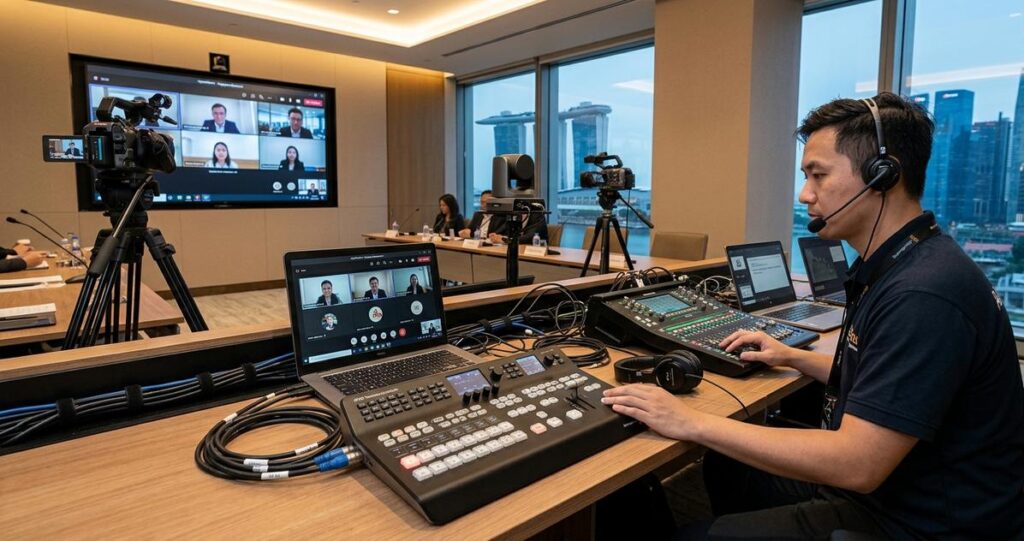
For Singapore businesses that run board meetings, training sessions, town halls, court proceedings, healthcare briefings, or hybrid conferences, Microsoft Teams has become a familiar platform for connecting people across rooms and regions. The moment an event moves beyond a single laptop camera, however, production quality becomes a practical concern. This is where an external vision mixer, also called a video switcher or production switcher, can make a major difference. It allows a producer to switch between multiple cameras, presentation feeds, remote guests, graphics, and branded layouts before sending one clean program feed into Microsoft Teams. The result is a more polished and controlled broadcast experience, while still using a platform that many Singapore teams already know well.
Integrating an external vision mixer into Microsoft Teams is not difficult in principle, but it does require the right hardware, signal flow, and network planning. The goal is simple, deliver a single reliable output that Teams can ingest without confusion, audio drift, or unnecessary latency. In practice, the setup must account for local meeting habits in Singapore, such as hybrid boardrooms in CBD offices, government-style webinars, education events, and multilingual sessions where presenters switch between English, Mandarin, Malay, or Tamil. A well-designed integration helps keep the meeting stable, improves audience experience, and reduces the chance of technical failure during an important live session.
This article explains how the integration works, what equipment is typically involved, common connection methods, and the key operational steps to get a clean feed into Microsoft Teams. It also covers practical considerations for Singapore-based organisations, including room design, internet reliability, compliance expectations, and the reality that different event formats require different production choices.
What an external vision mixer does in a Teams production workflow
An external vision mixer is a device or software-appliance that combines multiple video sources into one selected output. In simple terms, it lets a producer decide which camera, graphic, slide deck, or media source should appear on screen at any given moment. Instead of relying on Microsoft Teams to manage every source individually, the mixer creates a finished program feed that Teams sees as one input.
This approach is especially useful when the event requires more than a single webcam view. A vision mixer can handle speaker close-ups, wide room shots, slides from a presentation laptop, lower-third titles, remote content, pre-recorded videos, and split-screen compositions. For hybrid events, it also gives the technical team more control over pacing and visual consistency. Teams then acts as the distribution platform, while the external mixer handles the creative and operational side of the production.
Why use a mixer instead of switching inside Teams
Microsoft Teams offers basic meeting controls, but it is not designed to function as a full live production switcher. If the organiser needs broadcast-style transitions, custom overlays, or precise control of camera angles, an external mixer is usually the better tool. It also helps separate production tasks from meeting moderation tasks, which is valuable when an event has a chairperson, speaker support, Q and A moderator, and technical operator working together.
Using a mixer can also reduce cognitive load during live sessions. Rather than asking the presenter to manually share and unshare content, or depending on a host to jump between devices, the producer can run everything from one control surface. For structured events in Singapore, such as annual general meetings, medical seminars, corporate announcements, or training workshops, that consistency matters.
Choosing the right integration method for Microsoft Teams
There are several ways to connect a vision mixer to Microsoft Teams. The most suitable method depends on the mixer model, event size, room layout, and whether the feed needs to be one-way or interactive. The most common approach is to send the mixer’s output into Teams as a webcam source, but there are also workflows using capture cards, hardware encoders, and software routing tools.
The critical principle is that Teams should receive a stable video signal that behaves like a standard camera input. Once that is achieved, the mixer can function as the master production source, and Teams can distribute the content to participants with minimal complexity.
USB webcam output from the mixer
Many modern vision mixers can present their output to a computer over USB as if they were a webcam. This is often the simplest method for Teams because Microsoft Teams easily recognises a USB video source. The operator connects the mixer to the meeting computer, selects the mixer in Teams as the camera, and then sends program video into the meeting. Some mixers also support built-in audio embedding over USB, which can simplify the setup.
This option is attractive for Singapore conference rooms and boardrooms because it reduces hardware clutter. It also works well for organisations that want a straightforward workflow without a separate encoding box. However, quality and latency depend on the mixer model and its USB implementation, so the team should test resolution, frame rate, and audio sync before the live event.
HDMI or SDI to capture card
Another common method is to route the vision mixer’s program output into a capture card connected to the Teams computer. Capture cards convert HDMI or SDI video into a format the computer can read. This workflow is useful if the mixer does not have a reliable USB output, or if the production team wants more control over the computer-based stream handling.
HDMI is common in smaller environments, while SDI is often preferred in more demanding production settings because it is generally more robust over longer cable runs. In Singapore event venues, where room layouts can vary from compact hotel function rooms to larger ballroom spaces, SDI can be valuable when the mixer must be placed away from the display and camera positions. The trade-off is that the system becomes more technical, and the operator must manage driver compatibility, video formats, and audio routing carefully.
Software routing and virtual camera solutions
Some teams use software tools to route the mixer output into Teams through a virtual camera. This can work when the production computer receives a program feed and then presents it to Teams as a camera source. It is useful in compact setups, but it is usually less robust than a direct hardware path. Software routing adds another layer between the signal and the meeting, which can increase the risk of crashes or performance problems if the computer is already under load.
For lightweight webinars or internal meetings, this method may be sufficient. For high-stakes live events, many production teams in Singapore prefer a hardware-based signal path because it tends to be more predictable.
Setting up the video and audio chain correctly
A successful integration depends on more than plugging in a cable. The complete chain includes camera sources, the vision mixer, the Teams ingest computer, the microphones, audio mixer if used, and the network connection. Each part must be configured to avoid common issues such as echo, desynchronised sound, or mismatched frame rates.
Video and audio should be planned as one system, not as separate afterthoughts. If the video is stable but the audio is delayed, the audience experience still suffers. If presenters can be seen clearly but are difficult to hear, the event will feel unprofessional no matter how good the camera work is.
Video format, frame rate, and resolution
Before the live event, confirm the video format supported by the entire chain. Common production standards include 1080p at 25 or 30 frames per second, depending on the mixer, capture device, and the Teams setup. The safest approach is to keep the format consistent from source to output. Mixed frame rates can create motion issues or force unwanted conversion steps.
Resolution should match the event’s purpose and the network conditions. Higher resolution is not always better if the internet connection is unstable. For many corporate and educational Teams events, 1080p is a practical target, but the actual performance will depend on the platform’s current capabilities, the computer hardware, and the meeting configuration. It is also wise to check whether the receiving computer and the selected device driver handle the chosen format reliably.
Audio routing and echo control
Audio is often the most important part of the experience. A clear picture with poor sound still feels broken, while modest video quality with excellent audio can remain perfectly usable. If the mixer carries audio, make sure it is delivered to Teams in a way that avoids duplication. Audio echo commonly happens when the room loudspeakers are picked up again by open microphones or when Teams meeting audio is active on more than one device in the same room.
A practical approach is to define one master audio path. In many hybrid productions, the audio mixer feeds the vision mixer or capture path, and the room microphones are mixed carefully before being sent to Teams. The speakers in the room should be set up to avoid feedback, and the Teams meeting computer should not run its own microphone feed unless intentionally configured. A technician should monitor return audio through headphones or a dedicated listen circuit during rehearsal and live operation.
Lip sync and latency management
When video and audio travel through different devices, they may arrive out of sync. This creates a noticeable mismatch between speech and lip movement. If the audio path includes processors, wireless links, or software conversion, small delays can accumulate. Some mixers and capture devices allow audio delay adjustment, which can help align the signal.
Teams itself introduces some latency because it is an internet-based collaboration platform. That is normal. The job of the production team is to keep the internal room signal chain as efficient as possible before it reaches Teams. Rehearsal is the only reliable way to confirm sync, because different laptops, network paths, and peripherals can produce slightly different results.
Operational workflow for a live Microsoft Teams event
Once the system is connected, the live workflow should be rehearsed from start to finish. A production team should never assume that a working test call automatically means the event is ready. Real sessions involve speaker movement, lighting changes, content changes, and human timing. For Singapore organisations that operate in fast-paced business environments, even a short disruption can affect stakeholder confidence.
A good workflow usually begins with pre-event checks. Confirm that the mixer powers on correctly, all sources are visible, the capture device is recognised, the Teams meeting settings are correct, and the presenter can hear the room if needed. If there are remote presenters, test their incoming audio separately. If slides are part of the program, verify that the slide laptop is outputting the correct aspect ratio and that fonts remain readable.
Use a rehearsal with real presenters
One of the most valuable steps is a full run-through with the actual speakers. This lets the operator check camera framing, microphone handoffs, cue timing, and transitions between segments. It also helps presenters understand when they are on air and when they should wait for the production team. In Singapore’s corporate environment, where speakers may arrive close to the start time or move quickly between agenda items, rehearsal reduces surprises.
During rehearsal, note how the room sounds when participants speak naturally. Small changes in microphone placement can make a big difference. Also verify whether the event needs a single-language flow or a bilingual or multilingual setup. If translation is involved, the production team may need separate channels or separate content workflows, depending on the organisation’s setup.
Monitor the live feed like a broadcast, not like a casual meeting
A production-minded approach is essential. Someone should watch the program output, listen to the audio, and track the Teams meeting interface at the same time. The operator should not rely on the system continuing to work without oversight. If a laptop sleeps, a presenter changes a cable, or a remote guest unexpectedly joins, the production team must respond quickly.
For larger Singapore events, it is common to separate responsibilities, one person on the mixer, one on speaker support, and one on the Teams meeting controls. This division of labour is especially helpful for hybrid town halls, product launches, or executive briefings where timing and professionalism matter.
Singapore-specific considerations for reliability and compliance
Singapore organisations often expect a high standard of technical reliability, especially for corporate communications, training, healthcare education, financial services, and public-facing events. That makes network resilience, equipment sourcing, and venue planning especially important. While Teams is a cloud service, the quality of the experience still depends heavily on local infrastructure and room preparation.
Internet stability is a key factor. Even with a strong external mixer setup, the meeting will only be as good as the connection supporting it. If the event is mission-critical, consider using a wired connection rather than Wi-Fi, and keep a backup connection plan where possible. In office districts, hotels, and event venues, network policies and firewall settings should be checked in advance so that Teams traffic is not unexpectedly restricted.
Venue layout and room acoustics
Many Singapore meeting rooms are compact, glass-heavy, or acoustically lively. That can create echo and clarity issues if the production team uses too many open microphones or places speakers too close to reflective surfaces. Soft furnishings, proper microphone placement, and careful speaker volume control can help. A vision mixer will not solve room acoustics by itself, so the physical environment still matters.
If the event is in a hotel ballroom, convention room, or multipurpose venue, verify sight lines and cable runs early. Production teams should also confirm power availability, equipment rack placement, and access to the room before guests arrive. In tightly scheduled venues, late setup can create avoidable risk.
Data handling and organisational governance
Many Singapore organisations operate under strict internal governance policies for meetings, recordings, and data handling. If the Teams session is being recorded or if sensitive information is shared on screen, the team should confirm who can access the recording, how long it will be retained, and whether consent is required. For regulated sectors, such as healthcare and finance, internal policies may be more demanding than the platform itself.
It is also good practice to control what appears in the mixer feed. Desktop notifications, private chat windows, and stray documents should not be visible in the program output. A disciplined production workflow helps prevent accidental disclosure and keeps the event professional.
Common mistakes to avoid when connecting a vision mixer to Teams
One of the most common mistakes is treating the mixer output as a last-minute add-on. If the production team has not tested camera names, audio mapping, and meeting permissions in advance, the live session can become chaotic. Another frequent issue is failing to define which device is sending the master audio, which leads to echo or double sound.
Teams meetings can also fail when the computer is overloaded. If the same laptop is running slides, Teams, the capture device, chat moderation, and software routing, performance may suffer. When possible, assign the Teams ingest role to a dedicated computer. This is especially sensible for larger productions, because it reduces risk and simplifies troubleshooting.
Finally, do not assume that a single successful test means every future event will behave the same way. Different rooms, different presenters, and different network conditions can change the outcome. A repeatable checklist is more valuable than memory alone.
For Singapore businesses that run hybrid events regularly, integrating an external vision mixer into Microsoft Teams is best understood as a production discipline, not just a technical connection. The strongest setups combine a clear video workflow, disciplined audio routing, stable network planning, and a rehearsal process that respects the real-world pressure of live delivery. When the system is built properly, Teams becomes the distribution platform, while the mixer gives the event its structure, polish, and control.
If your organisation is planning a board meeting, webinar, town hall, or live hybrid event, the safest path is to design the signal chain first, test the room early, and assign clear operator roles. That approach keeps the experience professional for both in-room and remote participants, and it is especially useful in Singapore, where audiences expect efficiency, clarity, and reliability. For complex or high-visibility events, engaging an experienced hybrid production partner can help ensure that the mixer, audio, cameras, and Teams environment work together as one seamless system.
General information only: This article is intended to support operational planning for Microsoft Teams productions. For platform-specific configuration, device compatibility, or regulated-use requirements, always verify current Microsoft Teams documentation, manufacturer guidance, and your organisation’s internal policies before going live.

Jeremy Lee is a seasoned digital marketing director and strategist with over two decades of experience in the industry. As the founder of Sotavento Medios, I manage a diverse portfolio of over 50 businesses, helping brands grow through advanced search strategies and digital innovation. My work focuses on bridging the gap between traditional search engine optimisation and the evolving world of AI-driven answer engines.
get in touch